Add the Data Connection
1
Open Data sources
Under Workspace settings, select Data sources.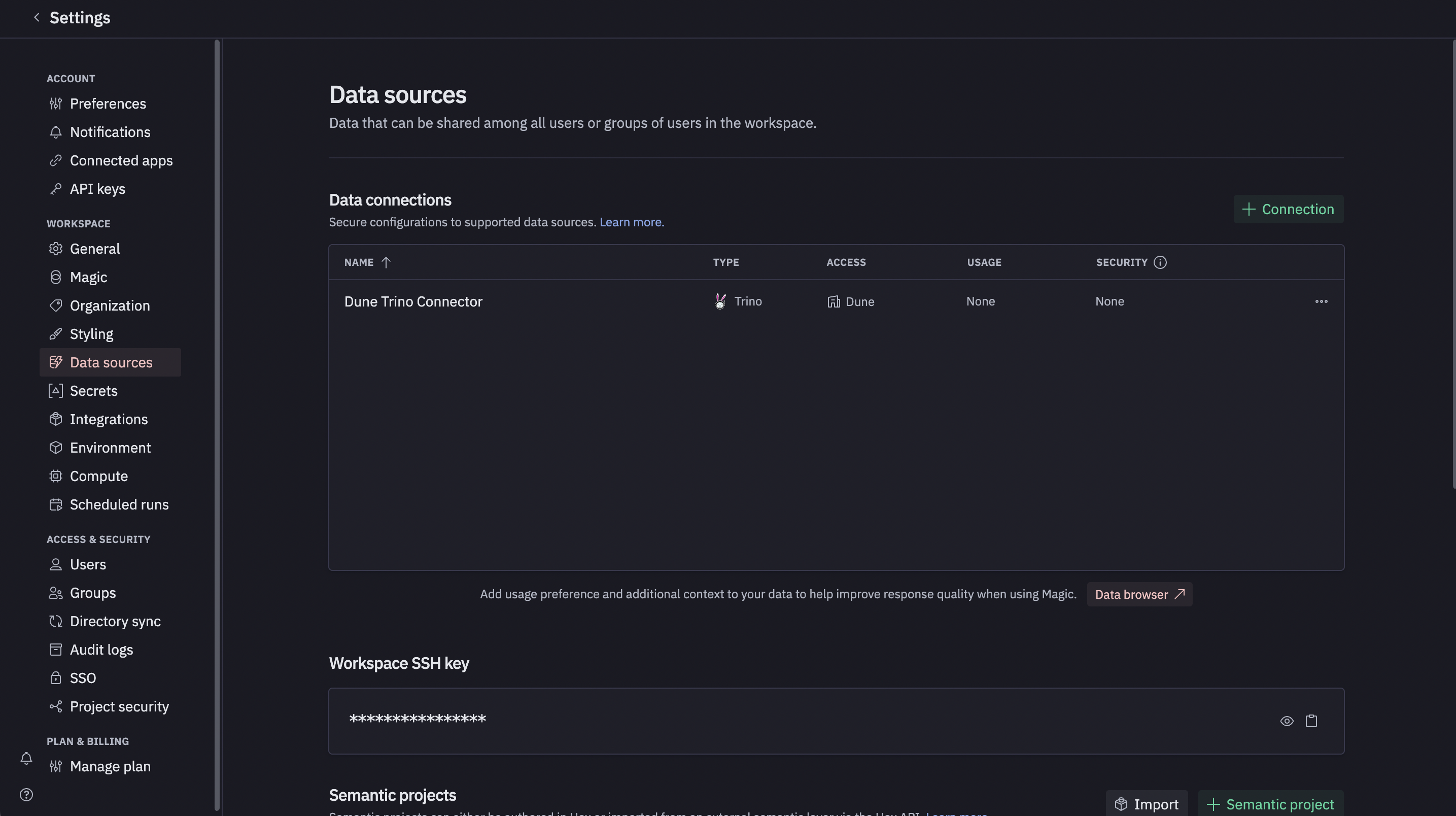
2
Add connection and choose Trino
Click the green + Connection button, then select Trino from
the list of available connections.
3
Enter connection details
Fill in the form fields using the values from the Connection Parameters section.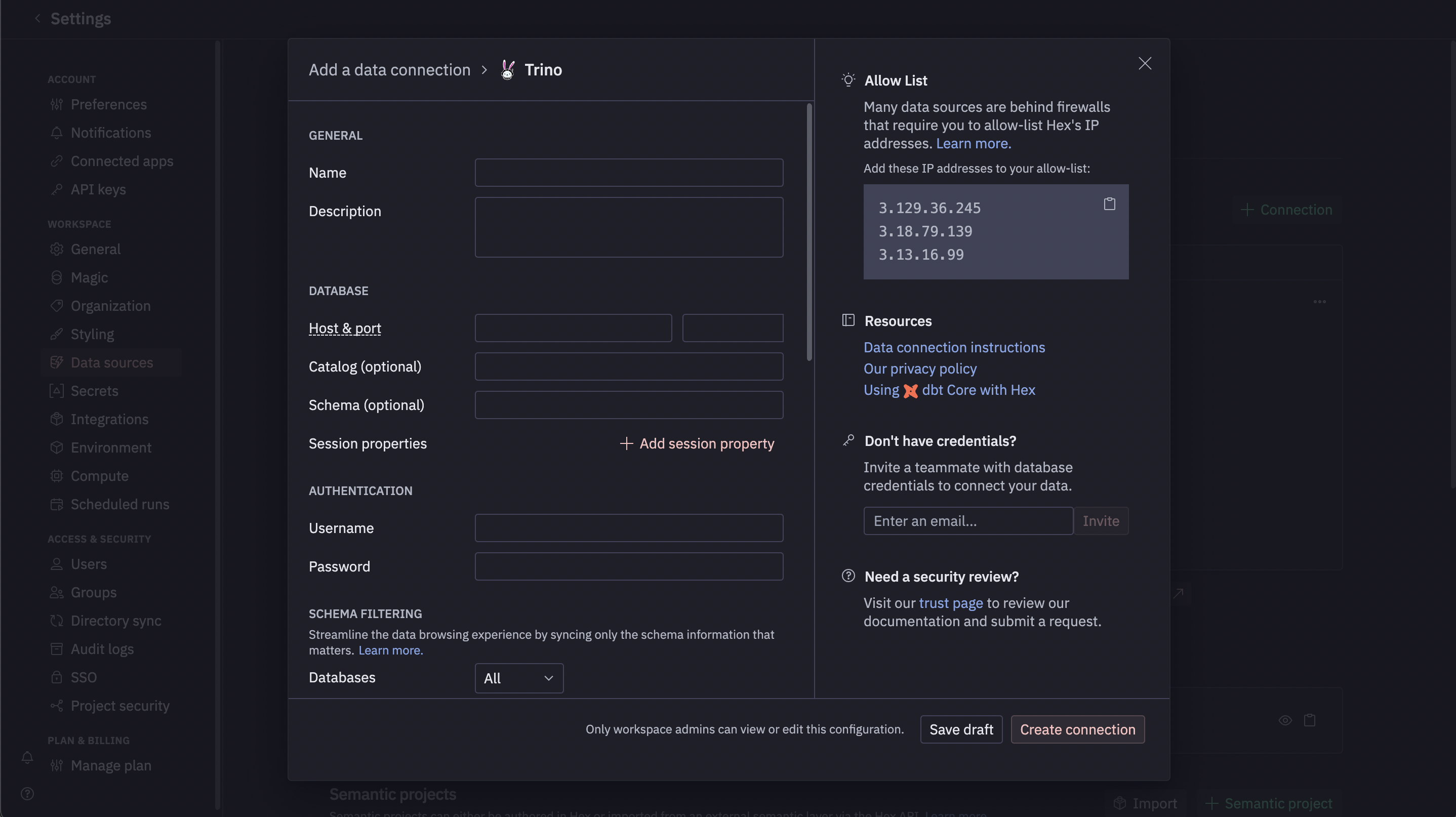
Run a Test Query
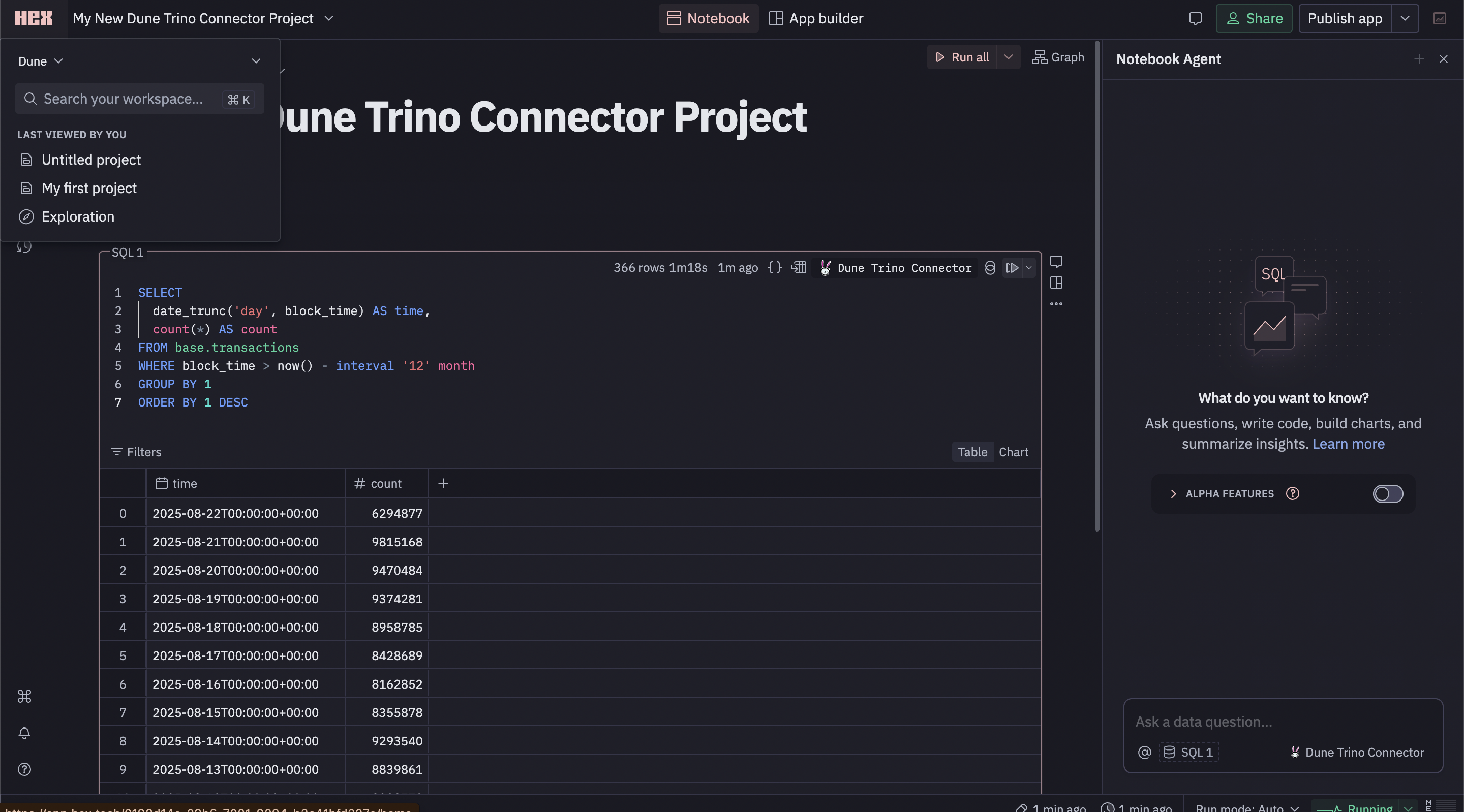
Once your data source is configured, you can query it directly from any Hex project.1
Open or create a project
Open an existing project or create a new one.
2
Add a SQL cell
Add a new SQL cell to your notebook.
3
Select data source
In the data source dropdown at the top of the cell, select your newly
created Dune SQL connection.
4
Paste and run SQL
Paste the example query below into the cell and run it.