> ## Documentation Index
> Fetch the complete documentation index at: https://docs.dune.com/llms.txt
> Use this file to discover all available pages before exploring further.
# Teams and Roles
> Create and manage team workspaces, invite members, assign roles, and collaborate on shared queries and dashboards.
Team accounts on Dune provide a shared workspace for collaboration. Teams can be created without a paid plan, but [Plus and Enterprise subscription features](https://dune.com/pricing) are available only to teams, not individual accounts.
**Enterprise organizations** — Companies with multiple Enterprise teams can use an **organization**: one subscription and administrative layer for many teams. Billing, consolidated usage, and some security settings are managed at the organization level; teams still own queries, dashboards, and API keys. See [Organizations](/web-app/organizations).
**Key benefits:**
* **Collaborate on shared content.** Multiple team members work on the same queries and dashboards.
* **Shared credits and paid features.** All team members can spend credits and access private content.
* **Team profile.** Showcase all of your team's work in one place.
* **Role-based access.** Assign viewers, editors, or admins to control permissions.
## Create a Team
1. Navigate to the **global context switcher** at the top of the page.
2. Select **"Create new team"** from the dropdown.
3. Complete the team creation process.
Every team must have a unique name that has not been used before.
## Invite Members and Assign Roles
After creating your team, invite members and assign roles:
* **Admin:** Full control over settings, memberships, and content.
* **Editor:** Can create and edit queries and dashboards under the team.
* **Viewer:** Can view team content and spend credits.
Click **"Invite People"** in the team settings or share a direct invitation URL.
When you invite a user, they receive an email with a link to join. They can also go to [Settings > Teams](https://dune.com/settings/teams) to accept the invite.
## Team Content
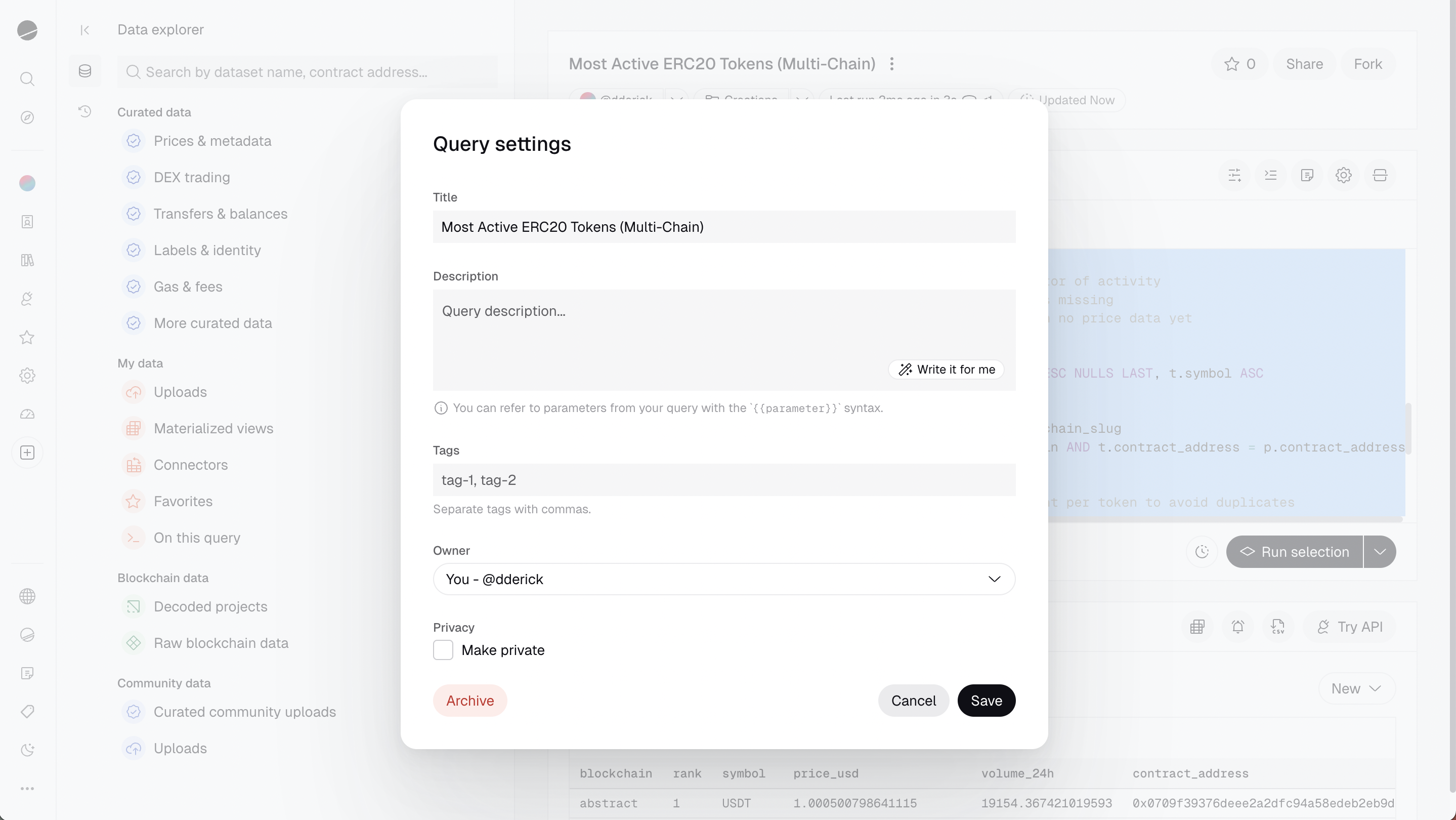
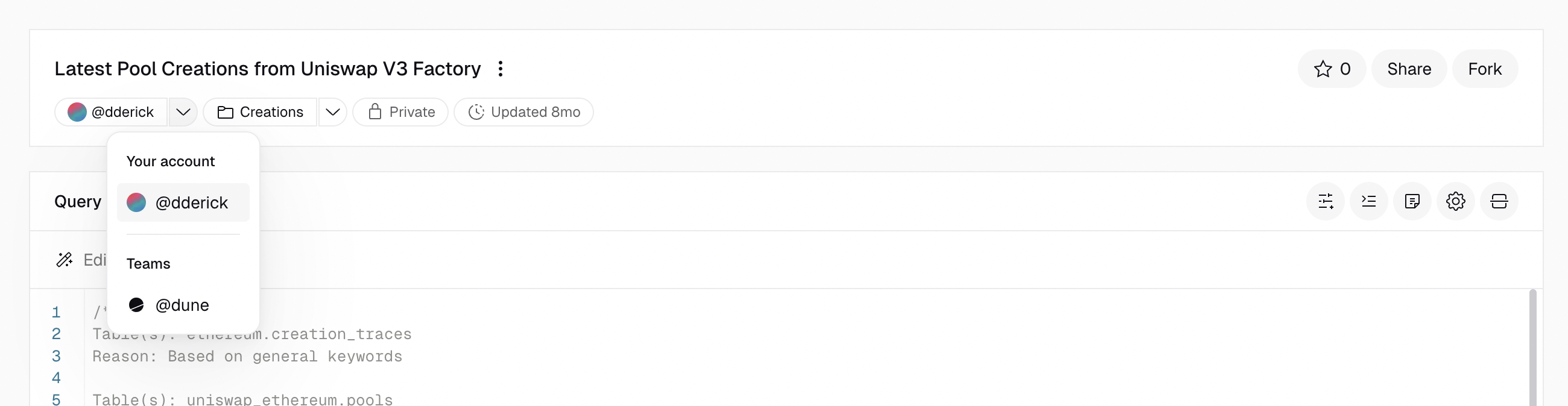
Team queries and dashboards are created the same way as individual content. The **context** you are in (personal or team) determines who owns the content you create. You can change ownership of any query or dashboard in its Settings page.
 Once you transfer content to a team, only an Admin can transfer it back out. If you accidentally transfer content, ask a team Admin to transfer it back.
## Switch Between Contexts
Use the global context switcher to toggle between your personal account and team accounts. The context determines:
* Which content appears in "My Creations"
* Which credit balance is used for query execution
* Who owns newly created content
Once you transfer content to a team, only an Admin can transfer it back out. If you accidentally transfer content, ask a team Admin to transfer it back.
## Switch Between Contexts
Use the global context switcher to toggle between your personal account and team accounts. The context determines:
* Which content appears in "My Creations"
* Which credit balance is used for query execution
* Who owns newly created content
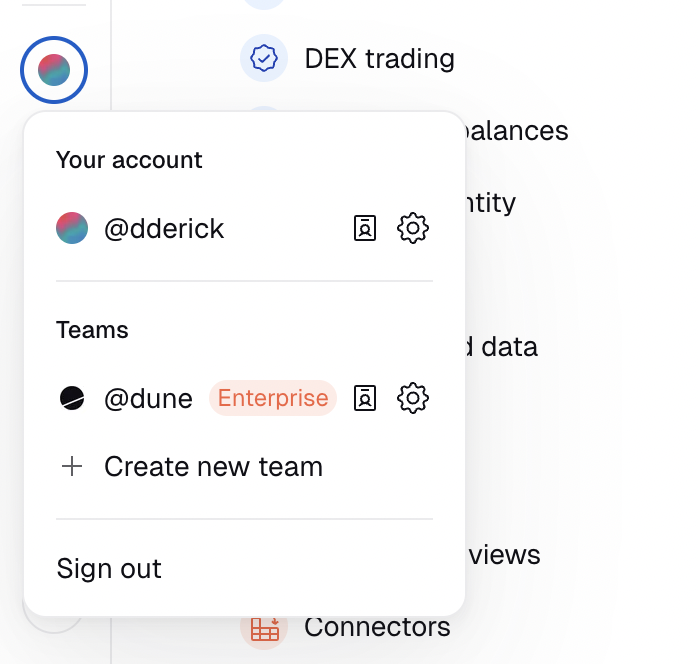 You can spend team credits on any content regardless of ownership, and edit team content from either context. Version History edits are always attributed to your personal account.
## Manage Subscriptions
Teams that belong to an **organization** do not have their own plan tab. Subscription, invoices, and organization-wide usage limits (including optional per-team credit caps) are managed in **organization settings**. See [Organizations](/web-app/organizations).
Navigate to the team account settings page to:
* **Modify your plan:** Change subscription plan or switch to annual billing.
* **View usage statistics:** Check credits, CSV uploads, and private content quotas. You can also [export detailed credit usage data](https://docs.dune.com/learning/how-tos/credit-system-on-dune#export-credit-usage-data).
* **Manage additional credits:** Set a maximum dollar amount for pay-as-you-go credits in the "Limit extra credits" field (default is \$0).
## Transfer Ownership
You can transfer ownership of queries and dashboards between team members, teams, or your personal account.
### Transfer a Query
1. Click the cogwheel button to open query settings.
2. In the "Owner" dropdown, select the new owner — you can transfer to a team member or to a team.
 ### Transfer a Dashboard
1. Click **Edit**, then **Settings** to open the modal.
2. Select the new owner in the "Owner" dropdown.
### Transfer a Dashboard
1. Click **Edit**, then **Settings** to open the modal.
2. Select the new owner in the "Owner" dropdown.
You can view ownership changes in the [Version History](/web-app/query-editor/version-history).
## FAQ
Private dashboards and queries are available for the team or personal account they belong to.
Ask one of your team admins. Every team must always have at least one admin.
Yes, in the People section of your team's Settings page.
Yes, in the Settings page of the query or dashboard you want to transfer.
Yes, but the target user must be a member of your team. If they are not, invite them first.
Yes, in the Settings page of the query or dashboard you want to transfer.