> ## Documentation Index
> Fetch the complete documentation index at: https://docs.dune.com/llms.txt
> Use this file to discover all available pages before exploring further.
# Writing Queries
> Write and execute SQL queries against blockchain data using Dune's query editor.
The query editor is where your team writes, tests, and iterates on SQL against Dune's blockchain datasets. Whether you're building production dashboards, validating on-chain metrics, or exploring data for the first time, the editor provides the tools to move from question to answer without leaving the browser.
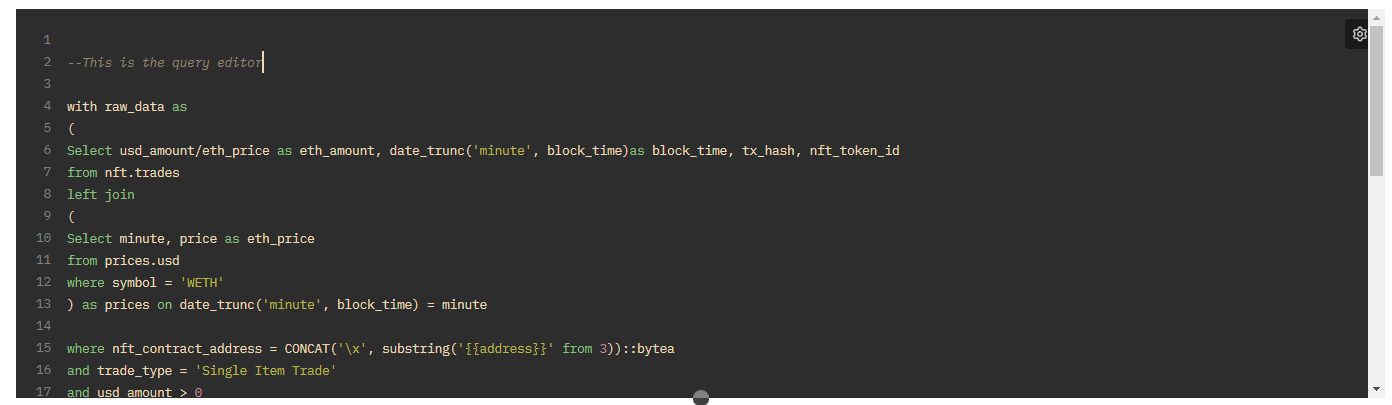 The query editor uses **DuneSQL**, a Trino-based engine optimized for blockchain data. For syntax details, supported functions, and data types, see the [SQL Query Engine](/query-engine/overview) documentation.
## Toolbar
The toolbar sits above the code editor and provides quick access to common actions.
| Tool | Description |
| ------------------------ | ----------------------------------------------------------------------------------------------------------------------------------------------------------------------- |
| **Edit SQL with prompt** | Type a natural language instruction to generate or modify SQL using AI. See [Dune AI](/web-app/dune-ai) for details. |
| **Add parameter** `{}` | Insert a dynamic parameter into your query. Parameters let dashboard viewers filter data without editing SQL. See [Using Parameters](/web-app/query-editor/parameters). |
| **Format query** | Auto-format your SQL with standard indentation and spacing for readability. |
| **Explain query** | Generate an AI-powered plain-English summary of what your query does. Useful for onboarding teammates or documenting query logic. |
| **Hide/Show SQL** | Collapse the code editor to maximize screen space for results and visualizations. Click again to restore it. |
## Editor settings
Click the **Settings** (gear icon) in the top-right corner of the editor panel to customize your coding environment.
| Setting | Description |
| ----------------------- | ---------------------------------------------------------------- |
| **Fullscreen mode** | Expand the editor to fill the entire screen. |
| **Syntax style** | Change the color theme and syntax highlighting of your SQL code. |
| **Tab size** | Set the indentation width (e.g., 2 or 4 spaces). |
| **Diff view** | Choose how code changes are displayed (e.g., split view). |
| **Enable autocomplete** | Toggle intelligent code completion on or off. |
## Writing and executing queries
### Autocomplete
The editor provides context-aware autocomplete for DuneSQL keywords, table names, and column aliases already referenced in your query. To manually trigger the autocomplete menu at any time, press `Ctrl/Cmd + Space`.
### Running queries
Click the **Run** button (or press `Ctrl + Enter`) to execute your query. Results appear in the results panel below the editor.
The **Try API** button next to Run generates an API endpoint for your query results, making it easy to integrate Dune data into external applications. See the [API documentation](/api-reference/overview/introduction) for more.
### Run selection
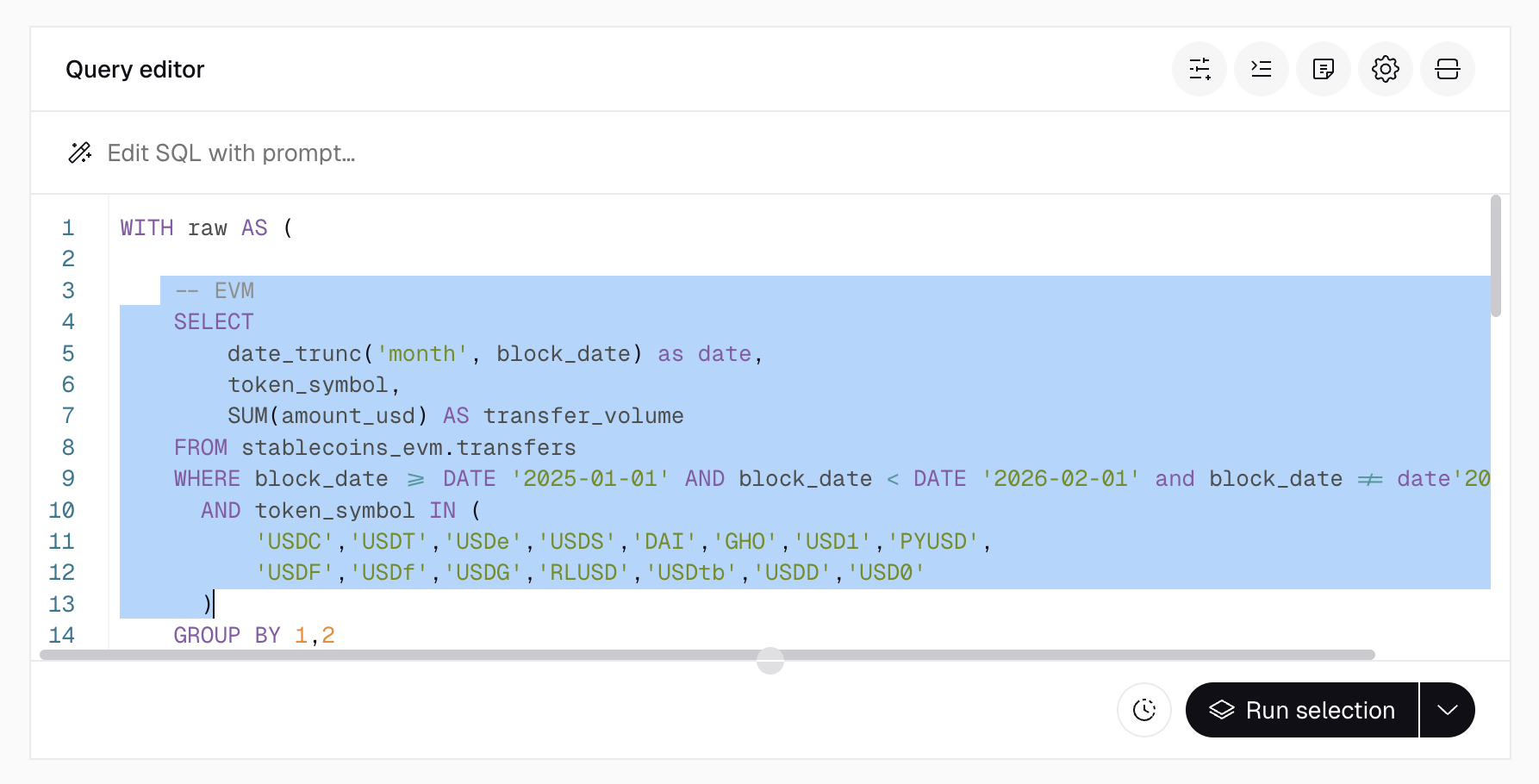
You can execute a specific portion of a query instead of the full statement. This is useful for testing subqueries, debugging intermediate results, or validating individual CTEs.
Highlight the portion of the query you want to run. The **Run** button updates to **Run selection**, and only the highlighted SQL is executed.
The query editor uses **DuneSQL**, a Trino-based engine optimized for blockchain data. For syntax details, supported functions, and data types, see the [SQL Query Engine](/query-engine/overview) documentation.
## Toolbar
The toolbar sits above the code editor and provides quick access to common actions.
| Tool | Description |
| ------------------------ | ----------------------------------------------------------------------------------------------------------------------------------------------------------------------- |
| **Edit SQL with prompt** | Type a natural language instruction to generate or modify SQL using AI. See [Dune AI](/web-app/dune-ai) for details. |
| **Add parameter** `{}` | Insert a dynamic parameter into your query. Parameters let dashboard viewers filter data without editing SQL. See [Using Parameters](/web-app/query-editor/parameters). |
| **Format query** | Auto-format your SQL with standard indentation and spacing for readability. |
| **Explain query** | Generate an AI-powered plain-English summary of what your query does. Useful for onboarding teammates or documenting query logic. |
| **Hide/Show SQL** | Collapse the code editor to maximize screen space for results and visualizations. Click again to restore it. |
## Editor settings
Click the **Settings** (gear icon) in the top-right corner of the editor panel to customize your coding environment.
| Setting | Description |
| ----------------------- | ---------------------------------------------------------------- |
| **Fullscreen mode** | Expand the editor to fill the entire screen. |
| **Syntax style** | Change the color theme and syntax highlighting of your SQL code. |
| **Tab size** | Set the indentation width (e.g., 2 or 4 spaces). |
| **Diff view** | Choose how code changes are displayed (e.g., split view). |
| **Enable autocomplete** | Toggle intelligent code completion on or off. |
## Writing and executing queries
### Autocomplete
The editor provides context-aware autocomplete for DuneSQL keywords, table names, and column aliases already referenced in your query. To manually trigger the autocomplete menu at any time, press `Ctrl/Cmd + Space`.
### Running queries
Click the **Run** button (or press `Ctrl + Enter`) to execute your query. Results appear in the results panel below the editor.
The **Try API** button next to Run generates an API endpoint for your query results, making it easy to integrate Dune data into external applications. See the [API documentation](/api-reference/overview/introduction) for more.
### Run selection
You can execute a specific portion of a query instead of the full statement. This is useful for testing subqueries, debugging intermediate results, or validating individual CTEs.
Highlight the portion of the query you want to run. The **Run** button updates to **Run selection**, and only the highlighted SQL is executed.
 ### Error handling
When a query fails, a red error banner appears at the top of the editor with details about the failure. Error messages include:
* **Error type** — e.g., `COLUMN_NOT_FOUND`, `SYNTAX_ERROR`
* **Line and character position** — the exact location of the issue in your SQL
* **Description** — a human-readable explanation of the problem
This inline feedback allows you to identify and fix issues without leaving the editor.
### Keyboard shortcuts
| Shortcut | Action |
| ------------- | ------------------------- |
| Ctrl + Enter | Execute the query |
| Ctrl + # or / | Comment out selected code |
| Ctrl + Space | Open autocomplete menu |
| Ctrl + Z | Undo last change |
| Ctrl + Y | Redo last change |
| Ctrl + F | Find text |
| Ctrl + H | Find and replace text |
*Shortcuts are based on US/UK keyboard layouts and may vary depending on your device's language settings.*
## Query results
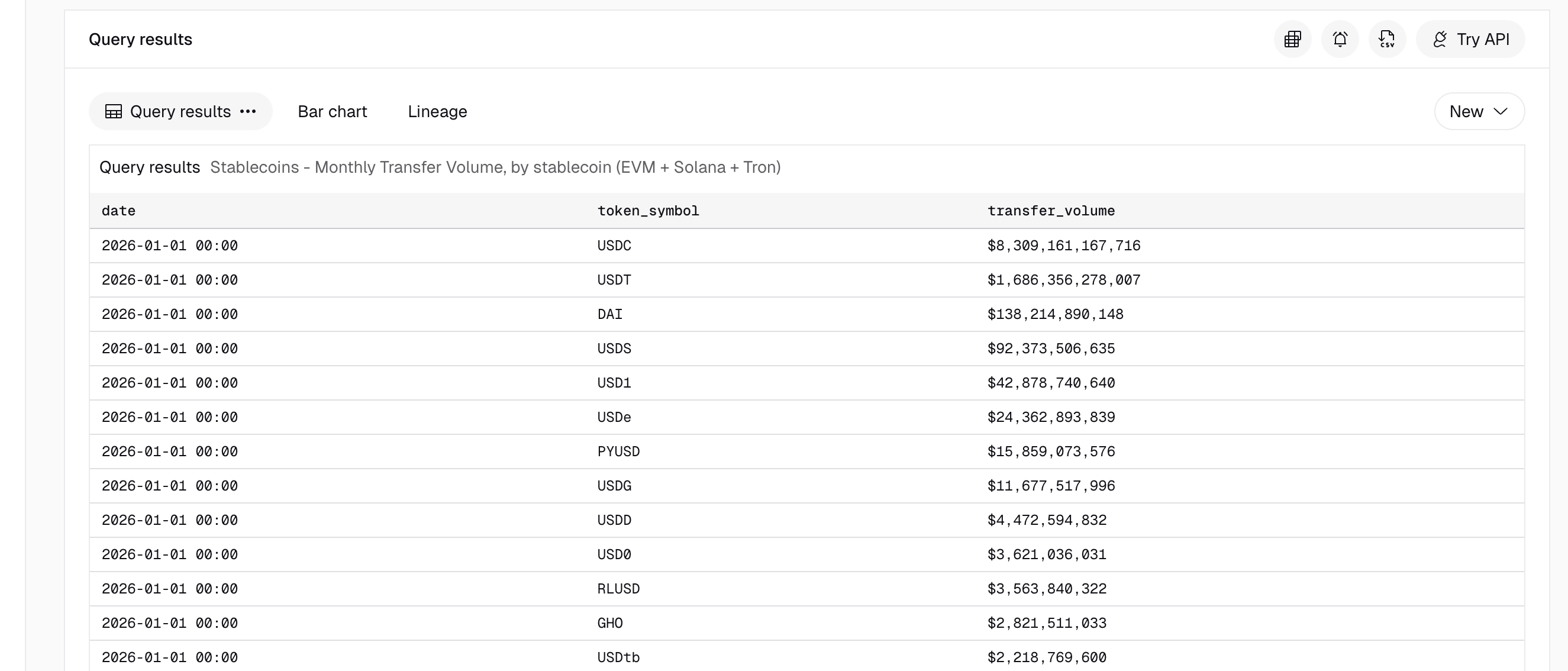
Query results appear in a table below the editor after execution.
* **Sort** by clicking any column header. Click once for ascending order, click again for descending.
* **Paginate** through results using the page controls. Each page displays 25 rows.
* **Search** across all result rows using the search bar below the results table.
### Error handling
When a query fails, a red error banner appears at the top of the editor with details about the failure. Error messages include:
* **Error type** — e.g., `COLUMN_NOT_FOUND`, `SYNTAX_ERROR`
* **Line and character position** — the exact location of the issue in your SQL
* **Description** — a human-readable explanation of the problem
This inline feedback allows you to identify and fix issues without leaving the editor.
### Keyboard shortcuts
| Shortcut | Action |
| ------------- | ------------------------- |
| Ctrl + Enter | Execute the query |
| Ctrl + # or / | Comment out selected code |
| Ctrl + Space | Open autocomplete menu |
| Ctrl + Z | Undo last change |
| Ctrl + Y | Redo last change |
| Ctrl + F | Find text |
| Ctrl + H | Find and replace text |
*Shortcuts are based on US/UK keyboard layouts and may vary depending on your device's language settings.*
## Query results
Query results appear in a table below the editor after execution.
* **Sort** by clicking any column header. Click once for ascending order, click again for descending.
* **Paginate** through results using the page controls. Each page displays 25 rows.
* **Search** across all result rows using the search bar below the results table.
 ### Column formatting
Each column in the results table can be individually configured without modifying your SQL:
| Option | Description |
| --------------------------- | --------------------------------------------------------------------------- |
| **Title** | Rename the display header (e.g., change `transfer_volume_usd` to "Volume"). |
| **Align** | Set column alignment to left or right. |
| **Format** | Apply number or currency formatting (e.g., `0.00`, `$0.0a`). |
| **Hide column** | Toggle column visibility to focus on relevant data. |
| **Colored negative values** | Automatically highlight negative numbers in red for easier trend analysis. |
For full details on table formatting options, including progress bars and advanced number formats, see the [Formatting Tables](/web-app/visualizations/tables) documentation.
### Column formatting
Each column in the results table can be individually configured without modifying your SQL:
| Option | Description |
| --------------------------- | --------------------------------------------------------------------------- |
| **Title** | Rename the display header (e.g., change `transfer_volume_usd` to "Volume"). |
| **Align** | Set column alignment to left or right. |
| **Format** | Apply number or currency formatting (e.g., `0.00`, `$0.0a`). |
| **Hide column** | Toggle column visibility to focus on relevant data. |
| **Colored negative values** | Automatically highlight negative numbers in red for easier trend analysis. |
For full details on table formatting options, including progress bars and advanced number formats, see the [Formatting Tables](/web-app/visualizations/tables) documentation.